
Why Resize Images?
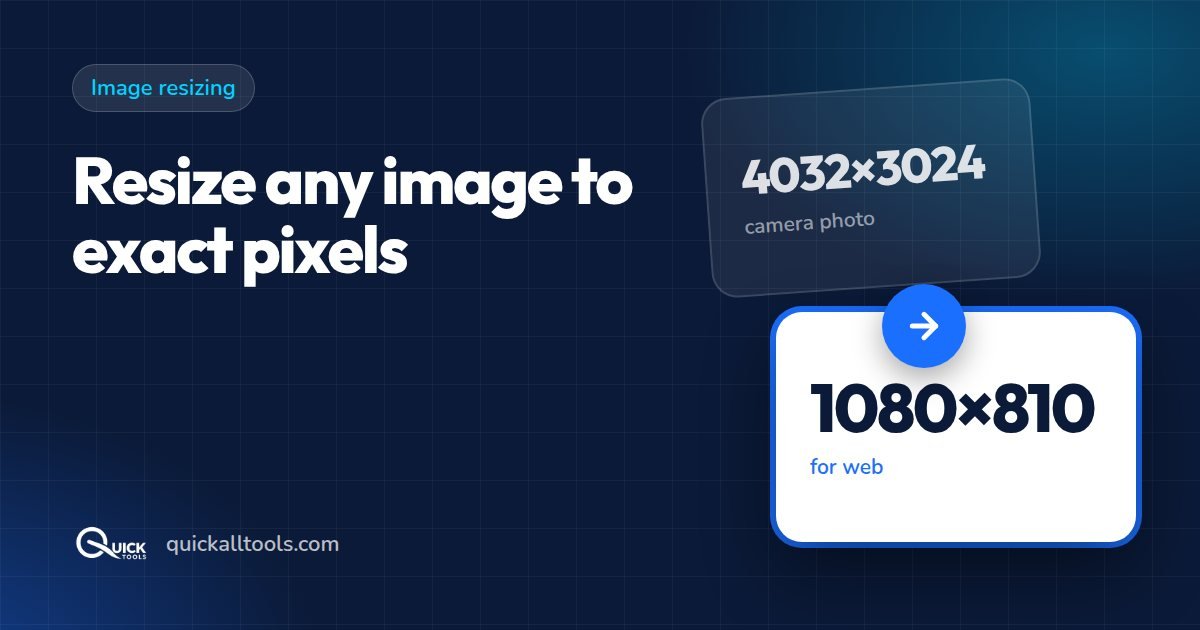
Different platforms require specific image dimensions. Resizing helps you:
- Meet social media image size requirements
- Reduce file size for faster website loading
- Prepare product images for online stores
- Create consistent thumbnail sizes for blogs
Standard Image Sizes You Need to Know
- Facebook cover photo: 1200 x 628 px
- Instagram post: 1080 x 1080 px (square)
- Twitter/X header: 1500 x 500 px
- LinkedIn banner: 1584 x 396 px
- YouTube thumbnail: 1280 x 720 px
- WhatsApp profile photo: 500 x 500 px
- Website hero image: 1920 x 1080 px
- Blog featured image: 1200 x 675 px
How to Resize Images Online Free — Step by Step
Step 1: Open the Image Resizer
Go to quickalltools.com/image-resizer in any browser. No account or installation needed.
Step 2: Upload Your Image
Drag and drop your image into the tool. Supports JPG, PNG, WEBP, and most common image formats.

Step 3: Set Your Dimensions
Choose how to resize: custom pixels, percentage, or social media presets.
Step 4: Download
Click Resize and download your image instantly at the new dimensions.
Tips for Resizing Without Losing Quality
- Always resize down, not up — making images larger reduces quality
- Start with the highest resolution version you have
- Use PNG for icons and logos — keeps edges sharp
- Use JPG for photos — smaller file size
Conclusion
Resizing images online is quick and completely free with Quick Tools. Try it now at quickalltools.com/image-resizer.
🛠️ Try Quick Tools Free
All our image tools are 100% free — no upload, no account, no limits. Works in your browser.
Browse All Free Tools →