
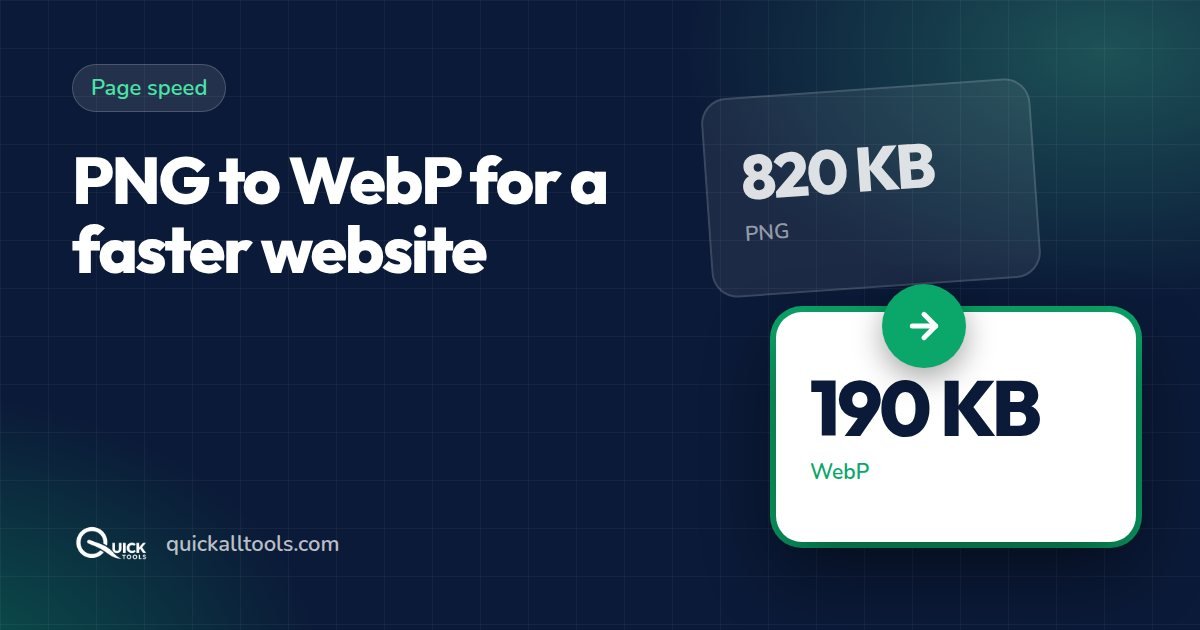
If PageSpeed Insights keeps telling you to "Serve images in next-gen formats", it's asking you to use WebP (or AVIF). WebP files are usually much smaller than PNG and JPG at the same visual quality, so pages load faster, especially on mobile data.
How much smaller is WebP?
| Original | Typical saving as WebP |
|---|---|
| PNG photo or screenshot | 50–80% |
| JPG photo | 25–35% |
| PNG logo with transparency | 20–50% (transparency kept) |
| Tiny icons under 5 KB | Sometimes none — keep the original |
Convert images to WebP in bulk
- Open PNG to WebP and drop all your images (PNG, JPG or GIF).
- Leave quality at 85. Use 100 only if you need a lossless copy.
- Press Convert to WEBP and download the ZIP. The list shows the before and after size of each file, and flags any file that didn't get smaller.
Everything runs in your browser, so you can convert client images without uploading them anywhere.
How to use WebP on your site
Plain HTML
Every current browser supports WebP, so you can simply use the .webp file in your <img> tag. Always set width and height to avoid layout shift, and add loading="lazy" to images below the fold.
WordPress
WordPress accepts WebP uploads in the Media Library since version 5.8. Upload the converted files directly, or use an optimisation plugin that creates WebP copies automatically. Remember to regenerate thumbnails if you replace existing images.
Other quick image-speed wins
- Resize before uploading. A 4000 px photo displayed at 800 px wastes bandwidth. Use the image resizer first.
- Compress JPGs you keep as JPG with the image compressor.
- Check your social preview image is exactly 1200 × 630 so it isn't re-cropped — see how to fix link previews.
Deciding between formats in general? Read PNG vs JPG vs WebP.
🛠️ Try Quick Tools Free
All our image tools are 100% free — no upload, no account, no limits. Works in your browser.
Browse All Free Tools →